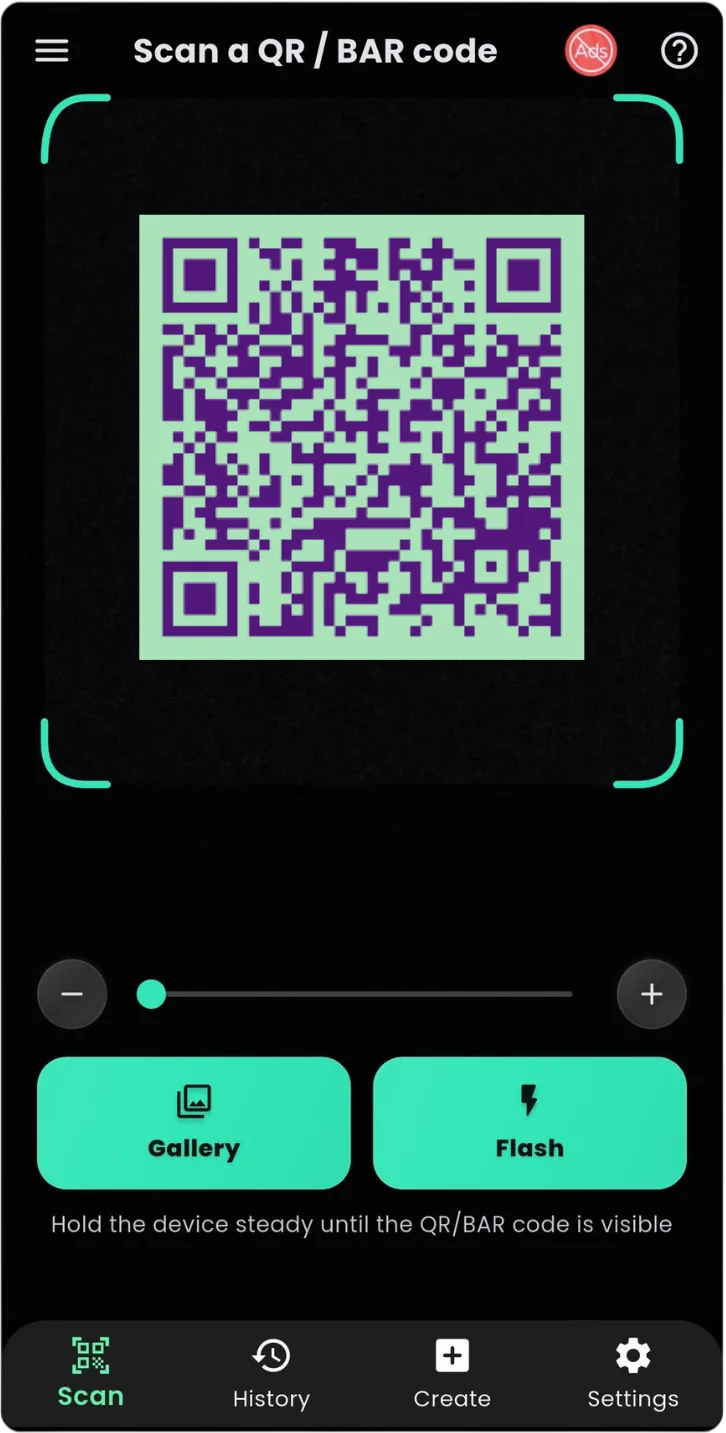
How to Share WiFi Password Using QR Code on Android
Sharing WiFi access with friends, family, or guests is something many people do every day. However, typing long WiFi passwords manually can be inconvenient, especially when passwords contain numbers, symbols, and uppercase letters.
A simple solution is using a WiFi QR code.
With a WiFi QR code, users can connect to a network by scanning a code instead of manually entering the password.
A QR scanner app for Android makes this process quick, easy, and convenient.
What Is a WiFi QR Code?
A WiFi QR code is a special type of QR code that stores wireless network information.
It can contain details such as:
- WiFi network name (SSID)
- Password
- Security type
When someone scans the QR code using a compatible WiFi QR scanner, the network information can be displayed instantly.
This removes the need to share passwords through messages or manually type them.
Why Use QR Codes for WiFi Sharing?
Traditional WiFi sharing requires users to:
- Find the network name.
- Ask for the password.
- Type the password carefully.
- Fix mistakes if something is entered incorrectly.
This can become frustrating with complex passwords.
Using a QR code makes the process faster.
Benefits include:
✓ Faster connection
✓ No typing mistakes
✓ Easier guest access
✓ Convenient password sharing
✓ Better user experience
How to Connect to WiFi Using a QR Code on Android
Connecting to WiFi through a QR code is simple.
Follow these steps:
Step 1: Open a QR Scanner App
Install and open a reliable QR code scanner app such as:
QR Scanner: WiFi & Barcode
The app uses your phone camera to recognize QR codes.
Step 2: Scan the WiFi QR Code
Point your camera toward the WiFi QR code.
Make sure:
- The QR code is visible
- Your camera is focused
- There is enough lighting
The scanner will automatically detect the information.
Step 3: Connect to the Network
After scanning, your device can display the WiFi details.
You can then connect without manually entering the password.
How Businesses Use WiFi QR Codes
WiFi QR codes are not only useful at home. Many businesses use them to provide easier internet access.
Examples include:
Restaurants and Cafes
Customers can scan a QR code and connect to guest WiFi quickly.
Hotels
Guests can access internet services without calling staff for passwords.
Offices
Employees and visitors can connect more conveniently.
Events
Organizers can provide quick internet access for attendees.
QR Scanner: WiFi & Barcode - Your Everyday Scanning Tool
QR Scanner: WiFi & Barcode is designed for Android users who want a simple way to scan QR codes and barcodes.
The app helps users access information quickly using their smartphone camera.
With this app, you can:
✓ Scan WiFi QR codes
✓ Read QR codes
✓ Scan product barcodes
✓ Access digital information quickly
✓ Use a simple scanning interface
Download QR Scanner: WiFi & Barcode:
👉 QR Scanner: WiFi & Barcode
https://play.google.com/store/apps/details?id=com.byteblazestudios.qrcodescanner&hl=en
Other Uses of QR Codes Beyond WiFi
QR codes are useful in many situations.
Website Access
Businesses use QR codes on posters and advertisements to open websites instantly.
Digital Menus
Restaurants use QR codes to provide online menus.
Contact Sharing
QR codes can store contact details for quick sharing.
Product Information
Customers can scan product codes to access more details.
Online Payments
Many payment systems use QR technology for faster transactions.
Why Use a QR Scanner Instead of Typing Information?
A QR scanner saves time by replacing manual input.
| Manual Entry | QR Scanner |
|---|---|
| Type passwords manually | Scan instantly |
| More chances of mistakes | Automatic reading |
| Takes more time | Faster access |
| Hard with long information | Simple camera scan |
QR codes are designed to make digital information easier to access.
Tips for Scanning WiFi QR Codes Successfully
Use Good Lighting
A clear camera view helps the scanner recognize codes faster.
Keep the Phone Steady
Avoid moving the phone while scanning.
Make Sure the QR Code Is Complete
The entire code should appear inside the scanner area.
Keep Your Camera Clean
A clean lens improves scanning accuracy.
Frequently Asked Questions
Can I share WiFi without telling the password?
Yes. WiFi QR codes allow users to share network information without manually typing passwords.
Can Android scan WiFi QR codes?
Yes. Android devices can scan WiFi QR codes using compatible QR scanner apps.
Does scanning a WiFi QR code require internet?
No. The scanning process itself does not require internet.
What is the best QR scanner app for WiFi?
A good WiFi QR scanner should provide fast scanning, simple controls, and reliable results.
Final Thoughts
Sharing WiFi passwords does not need to be complicated. QR codes provide a faster and easier way to connect devices without typing long passwords.
With QR Scanner: WiFi & Barcode, Android users can scan QR codes, read barcodes, and access digital information quickly.
Download the app today:
👉 QR Scanner: WiFi & Barcode
https://play.google.com/store/apps/details?id=com.byteblazestudios.qrcodescanner&hl=en
Make WiFi sharing simple with QR technology.